My office’s end-of-month drinks coincided with the publication of The Weaver’s Boy so I decided I’d co-opt the event into an unofficial launch party! Nothing too extravagant, I figured I could put up a couple of posters and hope it would generate some discussion — and maybe even a sale or two.
Problem is, I didn’t have a poster. Nor did I have the time to procure one from a professional designer. So, I wondered if I could do it myself, after all, how hard could it be, right?
Actually, it wasn’t that hard once I had in mind what I wanted. The difficulty was finding all the various assets, tools and information. So, to document my own effort for future reference I’ve created this tutorial — if it helps anyone else, all the better.
Note, in this guide I’m using an older version of the Adobe Creative Suite. Newer versions will of course, work. I do suggest alternatives but make no guarantees they’ll work exactly the same!
Start with a brief
Start by outlining your requirements — just as you would if you were commissioning a professional designer. This helped me a lot, making me think about the message I wanted to tell and how I wanted to tell it.
My requirements were:
- A3 in size1 for low-cost printing and laminating.
- Overall design in keeping with the genre (fantasy).
- A faux 3D book to make the cover stand out.
- A hook, titles and blurb for textual elements.
- QR codes to link directly to the book’s page on Amazon, iBooks and Google Play.
From the outset, I’m wasn’t expecting this to rival anything a professional could create. I needed to create something fast, looked good enough to stimulate some discussion among my colleagues — many of whom don’t know I even write fiction on the side.
Create a mockup
With my requirements in mind, I set about to create a mockup, first on paper as thumbnail sketches and then using Pixelmator, a popular and lightweight alternative to Photoshop for the Mac.
Gathering assets
Cover and text
These I already had. For text, I wanted to use the book’s tagline, summary and blurb, all of which are on my website.
I also have a cover too, having commissioned designer, Chris Kudi to produce one for the eBook and promotional purposes. All I needed was a means to turn this into a 3D book…more on that below.
The texture
I’ve worked with textured backgrounds for years — mostly for fantasy maps. I figured it was appropriate to use such a texture for a poster about a fantasy novella.
The parchment look works well, I think, for fantasy and historical fiction. If you are writing a thriller you’d probably want to go with a grudge look. For sci-fi, maybe something industrial or space-oriented. For romance, you’ll likely want something lighter. You get the idea, choose something that suits your book’s genre, setting and tone.
For my poster, I chose a lighter, parchment style to offset the cover, which is very dark. The idea is to create a strong contrast so the book stands off the page.
Textures abound online and many of them are free and/or royalty free. A search of Google images will reveal hundreds, if not thousands. Just ensure you check the licence — a good ideas is to search for textures released under Creative Commons.
Since I wanted my poster to be A3, I needed something that would print to that size at a decent resolution — or near enough with a little hackery in Photoshop.
The 3D book
This step turned out to be a near showstopper. Given how many 3D books I see online and in print, I assumed they would be easy to create. Unfortunately, most methods I encountered relied on online services with very little control over the finished product, or they were specialised apps, or they required a lot of work in Photoshop.
However, while searching Google, I found the excellent Covervault website, which provides easy-to-use 3D book mockups in Photoshop format with clear instructions on how to use them. Covervault’s licence is also very generous, requiring only attribution2.
My book’s cover is in 6:9 aspect ratio — i.e. to fit the popular 6x9 inch trim size that many mass-market paperbacks use. Covervault allows you to filter by size, but I was content to browse until I found the layout I wanted.

The only caveat, is that Covervault templates use Photoshop smart layers, which don’t work with Pixelmator or GIMP (another popular Photoshop alternative). Fortunately, I have a licensed copy of the Adobe Creative Suite 5.5. — albeit for Microsoft Windows3 — which I have installed on my gaming PC. It’s several years old, but it does the job.
In Photoshop, swapping out the stock cover was a breeze. Note it’s still possible to use these templates with other graphics editors, but you’ll have to manually graft and position your cover to the model using the app’s transform tool or similar. Alternatively you can try your luck with one of the online 3D cover makers — if you’re happy with that, you won’t need Photoshop.
First, I opened both my cover and the template in Photoshop.

Then I opened up the smart object and pasted my high-resolution cover into a new layer and then deleted the layer containing the stock image.

Once I saved, the smart layer automatically updated the master file and, voila, my cover was rendered on the layout. I hid the background, giving me a transparent image.

Finally, I exported to a PNG file and then cropped it to size.

QR codes and retailer logos
I found the retailer’s logos in high-resolution directly on their respective company’s websites, along with the brand guidelines.
For the QR codes, I used the online QR-Code-Generator website. Once I created a free account with them, I was able to generate the barcode as a PNG with sufficient resolution for the poster’s A3 size. More than anything, the barcodes needed to be clear enough to scan with a mobile phone.
Constructing the poster
When I created the mockup in Pixelmator, I realised I needed something with more control over the typography and layout that a mere raster photo editor could provide.
Since I already had to use Photoshop for the 3D book, I decided to use InDesign to construct the poster. InDesign is Adobe’s professional desktop publishing and layout application and it’s part of the Creative Suite licence I have.
Note that if you only have Photoshop, then you could use that instead of InDesign. Cheaper alternatives where this should work include Scribus, Pages (in page layout mode) — feel free to play around.
First, I placed the background texture and then the 3D book as separate layers. Once I got them positioned where I wanted them, I locked them down to avoid accidental click-dragging.
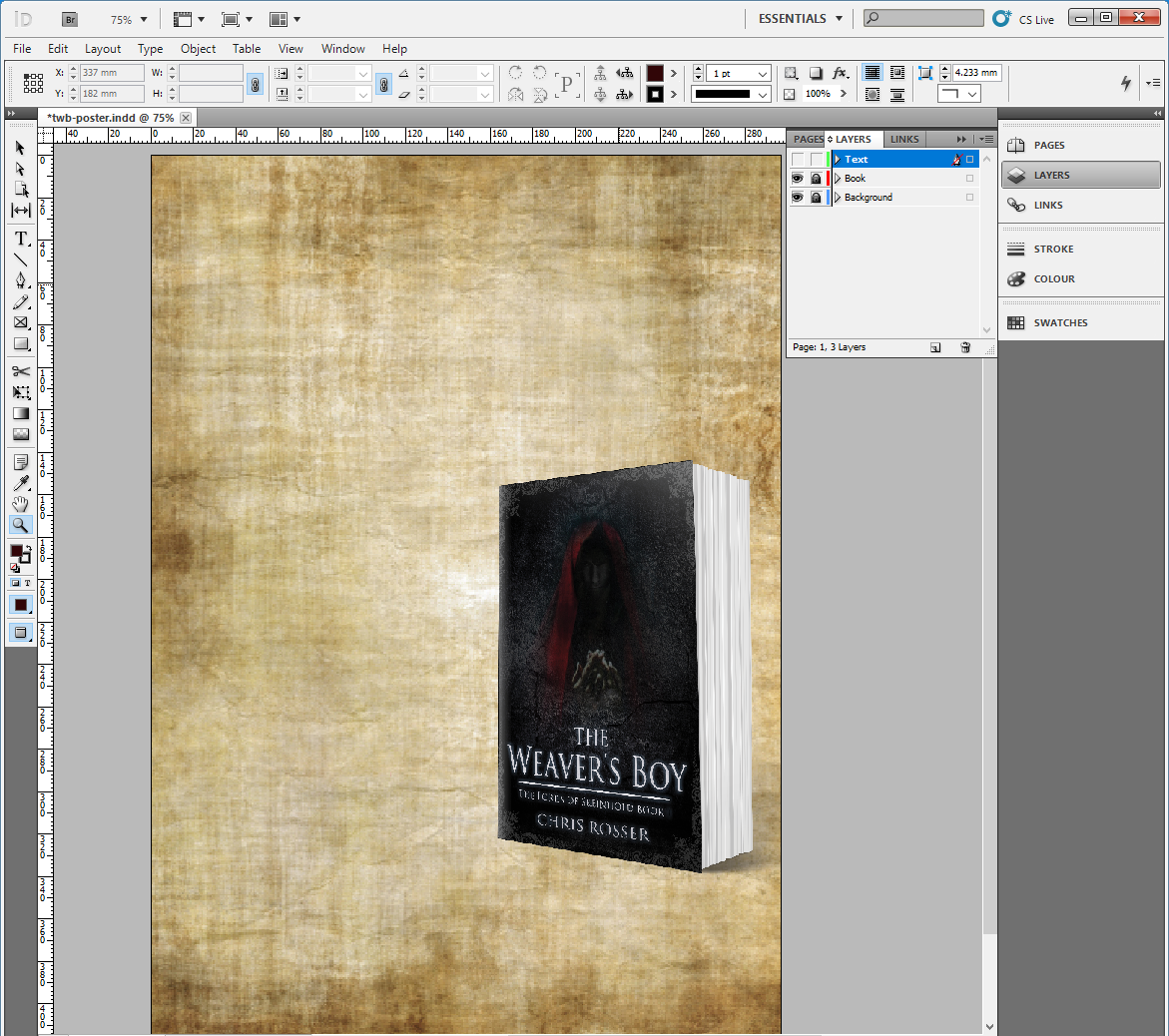
Next, I started to position the text, using my mock up as a reference.

For the typography, I erred on the side of clarity, rather than overcomplicating things. I chose a bookish font, which I felt matched the tone of the story.

I allowed myself the luxury of a couple of dropped caps (easy to do using the character tools) and I added a colour-highlight to several letters to make them stand out a little.

The colour highlight, a dark red, comes from the figure’s hood on the cover — I used the eyedropper tool to grab it, saved it as a swatch and then applied it to the text as required.
The final element was the the retailer badges and the QR codes, which I placed on the bottom of the page. I retained the white background both for prominence and for ease of scanning by a smartphone camera.

A couple of printouts, a few tweaks and I was done!

Print production
With the poster designed, and then exported to a high-quality PDF, I now had to print it out. I decided to do that in work, since I didn’t want to haul large printouts on the train across Melbourne. Besides, work has a large colour printer and an A3 laminator.

Final remarks
So, there you have it — a fairly straight-forward way to create a poster of for book, which met my needs nicely and looks good to boot.
If you’d like a copy of the full-size version as a PDF, click here!
If you have any questions, suggestions or thoughts, leave a comment below or reach out to me on your preferred social media platform.